#tools

Posts tagged tools

Conditional breakpoints in Visual Studio

Sometimes you do something and you never really think about what you’re doing.
Like the following code:

public bool TestSomething(bool input)
{
    if (input == true)
    {
        return true;
    }
    else
    {
        return false;
    }
}

It’s so obvious, I never thought about what I was really doing there, let alone seen the mistake I made. I mean, without any knowledge about boolean evaluation you still should figure out how to get rid of the bracket porn and produce something like this:

public bool TestSomething(bool input)
{
    if (input == true)
        return true;
    return false;
}

But that’s only syntactic, the whole statement itself is still silly. The whole == true is completely redundant because you already check a boolean condition to evaluate it to a boolean.


So it boils down to:

public bool TestSomething(bool input)
{
    return input;
}

And that’s it. You just saved yourself 6 lines of code that where completely useless (and I guess the compiler is smart enough to optimize that anyway  Update: actually, this does make a difference. The compiler can’t figure this out and will produce more IL code because of this).

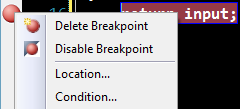
But once I did this I felt I lack the ability to put a breakpoint on the return false statement. And I eventually may have thought about going back to solution #2. But then I found this little thing in Visual Studio that made my day (and all major IDEs have that, only they hide it well):
image

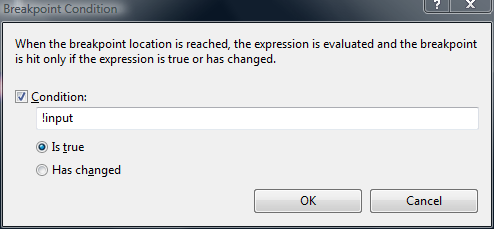
When you right click a breakpoint you can add a Condition to it, so it will only break when that condition is met. I did so, and voila:
image

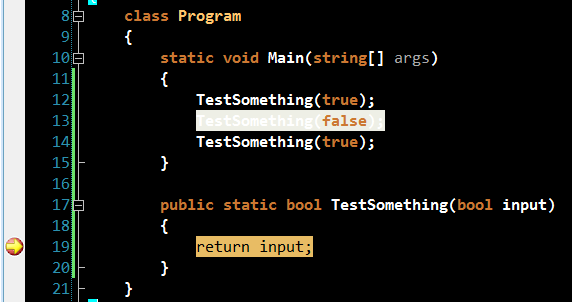
Without having to degrade my code I still could break only when false was returned.
So when I ran it the first break was in the third call:
image

So, thank god for such great tools like Visual Studio and ReSharper (R# hinted to me that I was doing something stupid in the first place)!

Read more →

Come to the dark side – we have cookies

vibrantink

After looking at the default color settings of Visual Studio for the last 8 years of my life I finally decided to give Rob Conery’s Vibrant-Ink theme for Visual Studio a try.

I discovered this lovely little theme quite some time ago, but I really didn’t see any benefit from changing my settings to this, so I forgot about it.
Until recently I started to feel the pain of working 10+ hours on a mediocre screen.
Eye strain was quite bad, and when someone suggested the theme (again) at Stackoverflow I finally tried it.

And, I have to admit, not only does my VS now look way cooler. My eyes feel less tired after long hours of work.

I would definitely suggest trying the theme, it’s just incredible.

Get the theme over at Rob Conery’s Blog and maybe adjust it a bit like Andrew Stopford suggests. But still, stick with Consolas as your font!

Read more →

When drivers don’t get along

Logitech VX Revolution

Just when I hoped driver issues are gone for good, I bought my new Logitech VX Revo because I was so upset with my Microsoft Presenter Mouse 8000 (worst mouse ever!).

After experiencing huge precision and lag issues with the Microsoft Presenter 8000 I wasn’t really happy to find my new Logitech totally laggy on the acceleration part.
I’m a huge fan of mouse acceleration, and that’s the main reason I wasn’t happy with Logitech mice, they accelerate differently than Microsoft ones.

But this wasn’t just different, the mouse accelerated absolutely insane:
I then found out that Logitech and Synaptics don’t come along too well. Synaptics and Logitech both try to hook into the same acceleration and so your mouse acceleration gets controlled by the Synaptics driver and your touchpad by the mouse driver. Adjusting the mouse speed worked separately, but still the acceleration was way out of line. So after a day of tinkering I finally gave in and uninstalled the touchpad drivers.

I tried to find a  solution to the whole SetPointSynaptics issue and it seems that there is no solution. Logitech blames Synaptics and vice versa. People just end up doing what I did, uninstalling the touchpad driver.

Logitech and Synaptics don’t work together.

And that means:

  • I can’t scroll on the touchpad (the scroll-area was part of the touchpad driver).
  • I can’t disable the touchpad when working with the mouse (driving me crazy all the time)
  • I miss all the neat stuff like gestures etc.

Soltution: Don’t get a Logitech mouse if you’re stuck with a Synaptics touchpad. It’s simply not worth the trouble.
And while at it, Microsoft should make the Touchpad driver that’s built into Windows better. I’d wish for Windows 7 to support gestures and scrolling out of the box, not having to rely on stupid drivers!

Read more →

Log4Net – Logging made easy

I confess, I’ve done projects that have Console.WriteLine or Debug.Print written all over the place. Sometimes I encapsulated that stuff into a separate Log Class that got passed around to every one, or sometimes I just created this little singleton that did the logging.

Either way, it was code I didn’t really want to write until late in development where I had to go back and retrofit logging into the application. And almost every time I did this it sucked and wasn’t satisfying at all. It worked, but I could have spent countless hours on polishing the logging stuff.

That was until I found Log4Net, the .NET implementation of the open-source log4j framework.

Log4Net enables you to just forget about the logging altogether while you develop your application. Just categorize your log statements into the 5 prioritized levels (DEBUG, INFO, WARN, ERROR, FATAL) and think about the configuration some other day.

Log4Net is completely Xml configuration driven and provides a very high degree of extensibility (Just implement new Appenders, Filters or Layouts).
So it keeps decisions about the where/how/when to log absolutely open until the very end.

Hell, you can even configure a file watcher and change the Log4Net Xml configuration during runtime!

Log4Net has just made it to my imaginary “must reference in each project” list. I strongly suggest you check it out.

Read more →

Handling dependencies

After playing around with Log4Net and the Castle MicroKernel, I suddenly discovered that not having those external dependencies under source control makes development quite difficult.

Whenever I update my dependencies, all other people on the team need to adjust theirs to match mine and vice versa. This is a minor annoyance while the team is small, once you grow and have people coming in and out of the team you’ll start to feel real pain!

If sucks even more if you’ve already shipped your application and get called a year later to change something. Trust me, digging up the right version of library X isn’t getting easier over time, and updating the application to a new version may either break the application or cause your customers to update too (both highly undesired!).

So, what’s the right solution to dependencies?
(No it’s not reinventing the wheel over and over again by writing everything by yourself)

Simple: Put the dependencies into a folder called /lib/ and reference them from there, set the “Copy To Output Directory” option to “Copy if newer”.
Then add this folder to your source control and you’re set. Whenever a new guy comes to the team and gets the project from source control, he’s guaranteed to be able to build it without having to run around some random site searching for referenced assemblies.

Read more →

Another take on Contiuous Integration

Ok, since my last post where I tried out CruiseControl.NET some time has passed.

Although I said last time setting up CCNet is easy and quick, this time I didn't listen to my own advice, and so when I needed a Continuous Integration system I went TeamCity.

TeamCity is great, just click on some buttons and your CI is running.
Log in to the website, configure everything through GUI and you're done.

Sadly, I wasn't done. Something with TeamCity's build runners wasn't working right and it wouldn't resolve my NUnit dependencies and fail to build at all.
I then tried to troubleshoot TeamCity for almost a day before I finally gave up and just installed CruiseControl.NET again.

CCnet on the other hand just worked great, and I was up and running smoothly after an hour or so. And since my last post was lacking, after the break is a step-by-step guide to setting  it up.

Subversion

I assume you have Visual SVN Server up and running already (or something else), so I'll skip this step.

CruiseControl.NET

Download and install the latest CruiseControl.NET from SourceForce

During installation CCnet installs two components, the webdashboard and the CCnet server. The webdashboard will automagically be installed into a IIS virtual directory so you can access it through http://localhost/ccnet

Although you can already access the webdashboard, you will not find much to do there since the CCnet service isn't started by default and is also lacking configuration.

Configuring the CruiseControl.NET server

Now, this is when the fabulous CCnet documentation comes in to play.
In the C:\Program Files\CruiseControl.NET\server\ directory you'll find a file called ccnet.config
I won't cover all basic steps since they are already well documented, but just point out the important ones in my config.

<sourcecontrol type="svn">
  <executable>C:\Programme\VisualSVN Server\bin\svn.exe</executable>
  <trunkUrl>https://localhost:8443/svn/myProject/trunk/</trunkUrl>
  <tagBaseUrl>https://localhost:8443/svn/myProject/tags/ccnet-builds/</tagBaseUrl>
  <username>username</username>
  <password>password</password>
  <autoGetSource>true</autoGetSource>
  <tagOnSuccess>true</tagOnSuccess>
</sourcecontrol>

The <sourcecontrol> block configures CCnet to access Subversion and retrieve the source. Notably: tagOnSuccess will automatically create a new tag in the tagBaseUrl directory depending on the later labeller block.

<labeller type="defaultlabeller">
  <prefix>myProject-alpha-0.1-build-</prefix>
  <incrementOnFailure>false</incrementOnFailure>
</labeller>

This labeller block has many many options for labeling your build, but I choose to just increment my build number on every successful build with the defaultlabeller. It's a bit too early for my current project, but at a later stage I think I'll exchange that labeller with a iterationlabeller that calculates an iteration number based on weeks since release in addition to the build number.

The nunit block in the tasks section defines where my NUnit console runner is located and what assembly should be tested upon build. It's pretty straight forward, but still I think it's important.

Yeah, and that's all. XML Configurationa always looks awfully complicated, but once you look over the angle bracket porn you'll find it pretty easy to configure and modify.

One tip though: Never try to debug your configuration through the windows service. Run the ccnet.exe from the console so you get all debug output to the console. This makes fixing and tweaking your ccnet.config very easy and less "voodoo".

Because starting is easiest with a sample configuration file. Here is mine:

config ccnet.config

Read more →

Useful tools: Windows Installer Clean Up

Although we all love the Windows Installer, sometimes it can give you a really hard time when it breaks (it does rarely, but it does).

That's the time when you need the Windows Installer Clean Up tool that will remove all install related information from your database so you can start over with the install.

I strongly advice not to use this tool for software that's properly installed. You'll have to clean registry/filesystem by hand if you delete the installer information. It's only really helpful to remove stuff you may have already deleted on the filesystem or to recover from a broken install.

You can download the Windows Installer Clean Up here, make sure to run it as administrator (Vista won't prompt you, it will just fail).

Read more →